
Download Window Wrangler – Keyboard‑Driven Window Resizing Tool
Overview
Window Wrangler is a lightweight utility that lets you resize, move, and snap application windows using only your keyboard. If you spend hours dragging the mouse to the corners of the screen, adjusting window dimensions, or juggling multiple monitors, this tool can dramatically speed up your workflow. By mapping the four arrow keys (or customizable combinations) to window actions, you can shift a window left, right, up, or down, expand or contract its size, and even place it in predefined zones without ever leaving the keyboard.
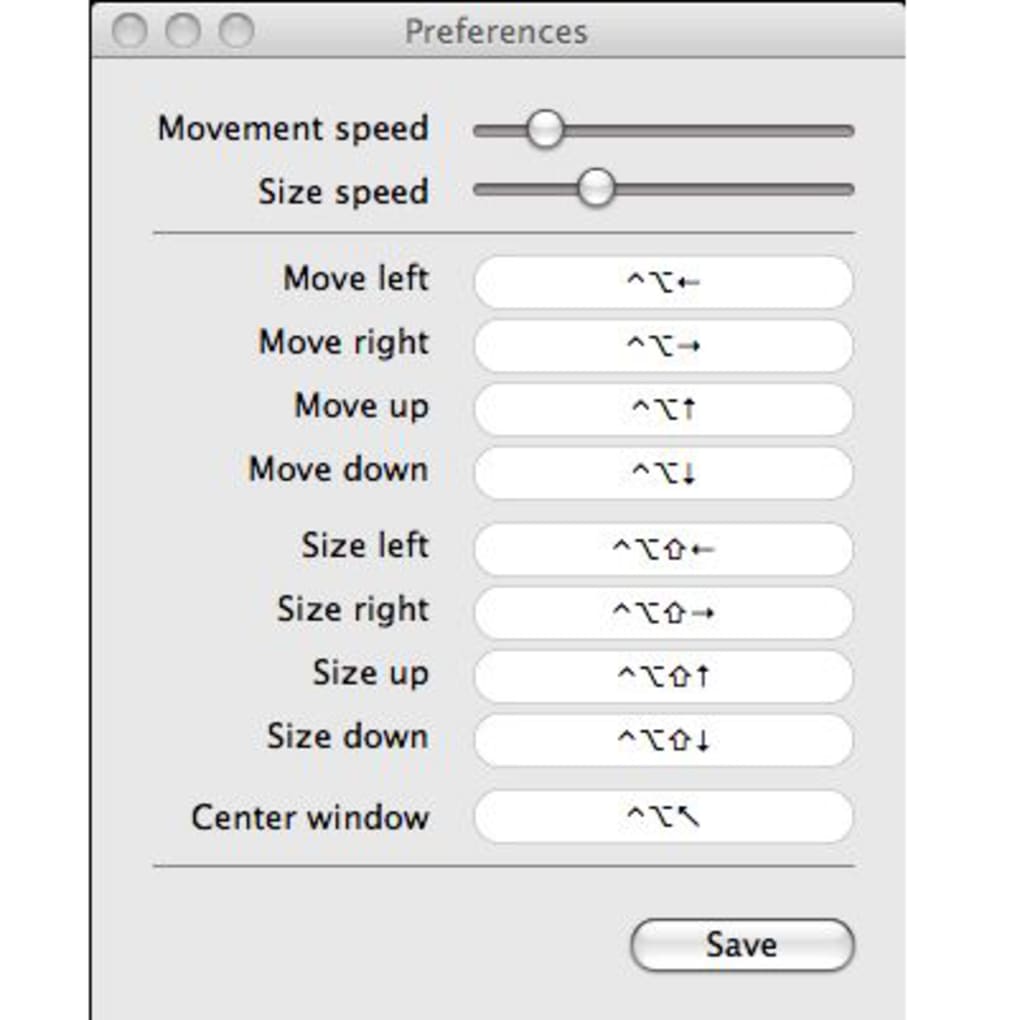
The program is designed for power users, developers, and anyone who loves a keyboard‑first approach. While the default shortcuts are sensible, the preferences panel provides full control over key bindings, movement speed, and resize increments, ensuring a personalized experience. Although a brief tutorial is not bundled, the intuitive UI and clear sliders make it easy to get started after a quick glance at the shortcut list.
Core Features & How It Works
- Keyboard‑Only Window Management: Use arrow keys combined with modifiers (Ctrl, Alt, Shift) to move and resize windows instantly.
- Customizable Shortcuts: Define your own key combinations for each action via an easy‑to‑use preferences dialog.
- Speed Control Sliders: Adjust movement speed and resize step size to match your typing rhythm.
- Multi‑Monitor Support: Seamlessly drag windows across screens without mouse interaction.
- Preset Layouts: Save common window configurations (e.g., half‑screen, quarter‑screen) for one‑click activation.
- Lightweight & Free: The application consumes minimal system resources and is offered at no cost.
- Cross‑Platform Compatibility: Available for Windows 10/11 and macOS 10.15+ (with future Linux builds in the pipeline).
How It Works Behind the Scenes
When you press a defined shortcut, Window Wrangler intercepts the keystroke using a low‑level hook, then calls the operating system’s native window manager APIs to reposition or resize the target window. The process is instantaneous, avoiding the lag that can occur with mouse dragging. Because it works at the OS level, it supports any application—whether it’s a web browser, IDE, or graphic editor. The preferences pane stores your settings in a JSON file located in the user’s AppData (Windows) or Library (macOS) folder, making it easy to back up or transfer to another machine.
For users who prefer visual feedback, a subtle overlay appears for a split second, showing the new window dimensions and position. This helps you confirm the action without breaking your flow. The overlay can be toggled off for a completely invisible experience, which some power users appreciate.
Installation, Usage & Compatibility
Step‑by‑Step Installation
1. Download the installer: Visit the official website and click the “Download for Windows” or “Download for macOS” button. The file size is under 5 MB, making it quick to download even on slower connections.
2. Run the installer: On Windows, double‑click the .exe file and follow the wizard (accept the license, choose the install folder, and click “Install”). On macOS, open the .dmg, drag the Window Wrangler icon to the Applications folder, and launch it from Spotlight.
3. Grant permissions: Both platforms require accessibility or automation permissions so the app can control other windows. The installer will prompt you, and you can enable the permission in Settings → Privacy → Accessibility (Windows) or System Settings → Security & Privacy → Accessibility (macOS).
4. Initial launch: The first run opens a minimal tray icon and a preferences window where you can review the default shortcuts and adjust speed sliders.
Basic Usage Tips
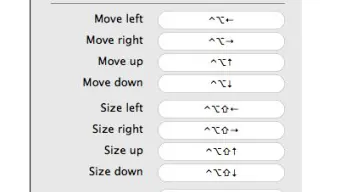
After installation, the default shortcuts are:
- Ctrl + Alt + ← / → – Move window left or right.
- Ctrl + Alt + ↑ / ↓ – Move window up or down.
- Ctrl + Shift + ← / → – Decrease or increase window width.
- Ctrl + Shift + ↑ / ↓ – Decrease or increase window height.
- Ctrl + Alt + Space – Cycle through preset layouts (half‑screen, quarter‑screen, etc.).
To resize a window, select it (click once with the mouse or use Alt + Tab to focus) and then press the resize shortcuts. The movement speed can be fine‑tuned in the preferences pane; a slower speed is ideal for precise adjustments, while a faster speed helps when you need to jump windows across a large monitor.
Compatibility
Window Wrangler runs natively on:
- Windows 10 (64‑bit) and Windows 11.
- macOS Catalina (10.15) and later (including Apple Silicon).
Although a Linux version is not officially released yet, the codebase is open‑source, and the community has started a fork that works with X11 and Wayland. The application requires no additional runtime (no .NET or Java), making it a truly lightweight addition to any workstation.
Pros & Cons
What Users Love
- Eliminates repetitive mouse dragging, saving time.
- Fully customizable shortcuts fit any workflow.
- Minimal CPU and memory footprint (under 20 MB RAM).
- Works across all applications, not limited to a specific suite.
- Free with optional donation for development.
Areas for Improvement
- Lacks an integrated tutorial or video walkthrough.
- Initial shortcut list can be overwhelming for keyboard‑novices.
- Mac version missing a dark‑mode toggle (currently follows system theme).
- Only basic preset layouts; power users may want more complex tiling options.
- No built‑in multi‑monitor snapping grid (requires manual positioning).
Frequently Asked Questions
Is Window Wrangler completely free?
Yes, the core application is free for personal and commercial use. The developer accepts donations via PayPal or Patreon to support future updates.
Can I use Window Wrangler on a laptop with a touchpad only?
Absolutely. Since all actions are keyboard‑driven, you can completely ignore the touchpad while resizing or moving windows.
What permissions does the app require?
The app needs accessibility/automation permission to send window‑management commands to other applications. This is a standard requirement for any tool that controls external windows.
Can I export my shortcut configuration?
Yes. All preferences are stored in a JSON file. You can copy this file to another machine or back it up manually.
Is there a way to disable the overlay that shows window size?
In the preferences panel, there is a toggle named “Show overlay on resize.” Turning it off makes the resizing completely invisible, which many power users prefer.
Window Wrangler is a game‑changer for anyone who spends a lot of time juggling windows. The learning curve is short for experienced keyboard users, and the ability to fully customize shortcuts makes it adaptable to any workflow. While a short tutorial would improve onboarding, the overall stability and performance far outweigh this minor drawback. For a free tool, it delivers professional‑grade window management without any bloat.
Conclusion & Call to Action
In a world where productivity tools compete for attention, Window Wrangler stands out by simplifying a mundane task—window resizing—into a fluid, keyboard‑centric experience. Its lightweight nature, robust feature set, and zero cost make it an ideal addition to any developer’s toolkit, designer’s workstation, or power user’s desktop. Even if you’re new to keyboard shortcuts, a few minutes of exploration will reveal how much faster you can navigate your screen. Give it a try today, adjust the speed sliders to suit your style, and enjoy the newfound freedom of a mouse‑less workflow. Download Window Wrangler now and transform the way you interact with your operating system.
Click here to download the latest version for Windows or macOS. Join the community forum for tips, custom shortcut packs, and future feature requests.







